Be smarter in live conversations.
Your AI copilot for online meetings — understanding what's being said and helping you respond, right when you need it. Speech is recognised on your computer, and the model that answers can run there too.
Full access for 7 days. A payment method is required to start the trial — but no AI account or API key: jhint brings its own model.
Why jhint is different
-
Works the minute you install it
A model runs on your computer out of the box. No account with anyone, no API key, nothing to sign up for.
-
Nothing joins your call
No bot in the participant list, no integration to install. jhint listens to the audio your computer is already playing — any app, any platform.
-
Speech recognised on your computer
Transcription runs on your computer while people are still speaking. The audio itself never leaves the machine.
-
Nothing is sent until you press Answer
No stream of suggestions, no background requests. One press, one answer — and you see what went.
Works with popular communication platforms
-

- Microsoft Teams
- Google Meet
-
 Webex
Webex -

-

- FaceTime
Product names and logos are trademarks of their respective owners. Their use identifies compatible software only and does not imply affiliation, sponsorship, endorsement, certification, or partnership.
Works with the AI provider you choose
Built in — on every plan
- Built-in model
On your own hardware — Pro
- Ollama
- LM Studio
External, your own account — Pro
- Anthropic
- OpenAI
- Groq
- OpenRouter
The built-in model needs no account and no key, on every plan. Everything else is part of Pro, and there you bring your own — jhint is not the model provider. Product names are trademarks of their respective owners; support for a provider does not imply affiliation, sponsorship, or endorsement.
Reads the files you attach to a session
- Word
- Excel
- PowerPoint
- Markdown
- Plain text
- CSV
- RTF
- HTML
- OpenDocument
- Images
Text, Office documents, spreadsheets and decks are parsed on your computer. PDFs and images are read once, by the model you chose, at the moment you attach them. From then on your questions carry only the extracted text — never the file.
How it works
Listen first. Ask when it matters.
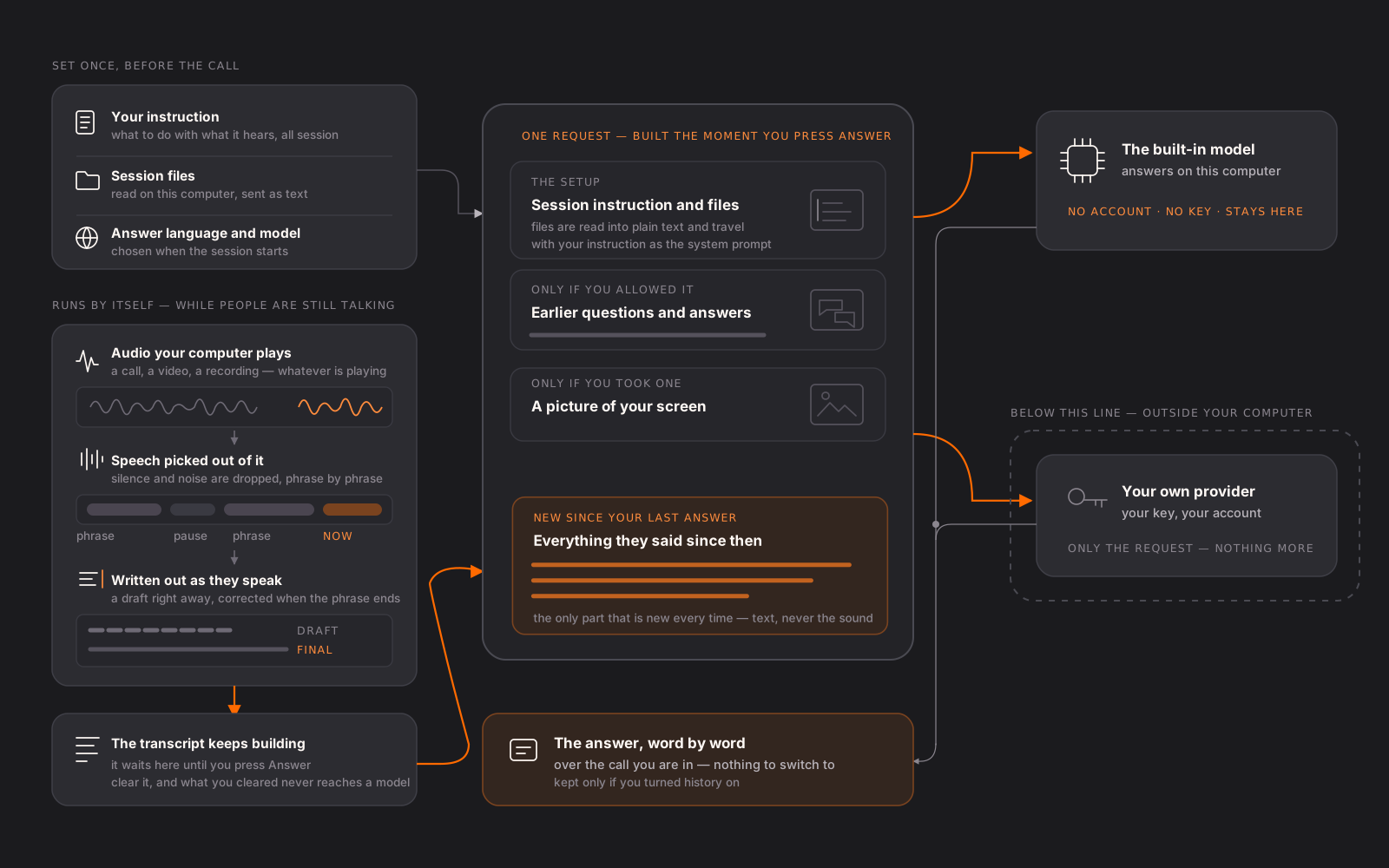
What the app does
-
Answers on your computer by default
The engine ships inside the app; you pick a model and it downloads once. After that answers are computed on your computer — no account, no key, and no bill for what you ask.
-
Or runs on the provider you already pay for (Pro)
Anthropic, OpenAI, Google, Groq, OpenRouter with your own key — or Ollama and LM Studio on hardware you control. Keys live in the secure storage of your operating system, and jhint checks the model answers before the session starts.
-
Hears the call, not you
jhint captures the audio your computer is playing — the other party, not your microphone. Any app that makes sound is a source: a video call, a stream, a recording.
-
Transcribes as people speak
Recognition runs on your computer and updates the line while it is still being said. The spoken language is detected automatically, or fixed when you know it in advance.
-
Answers only on your command
One press, or one shortcut. You can stop a running answer, and clear what has accumulated when the conversation drifts — what you clear never reaches the model.
-
Works from the material you gave it
Attach documents to the session — text, Word, RTF, HTML, OpenDocument, PDF — and write the instruction the model follows all session: check claims, translate, pull out the numbers.
-
Reads your screen on request
Capture the active window and send it as part of the question — a table, a contract, a dashboard. Up to four screenshots per question, and only to models that accept images.
-
Looks things up when you allow it
Off until you turn it on. The built-in model searches from your own computer and shows you every query it makes; an external provider searches on its side, where that provider supports it. The answer carries a mark when the web was used.
-
Answers in the language you need
The reply comes back in the language you pick for the session, whatever language the conversation is in — or in the model's own choice when you leave it to decide.
-
Keeps the conversation only if you ask
History is off until you turn it on. Turned on, sessions are encrypted on disk, kept for the period you set, and erased in one action whenever you want.
Get started
Three questions in one window — four if you set up your own provider — then your first call.
-
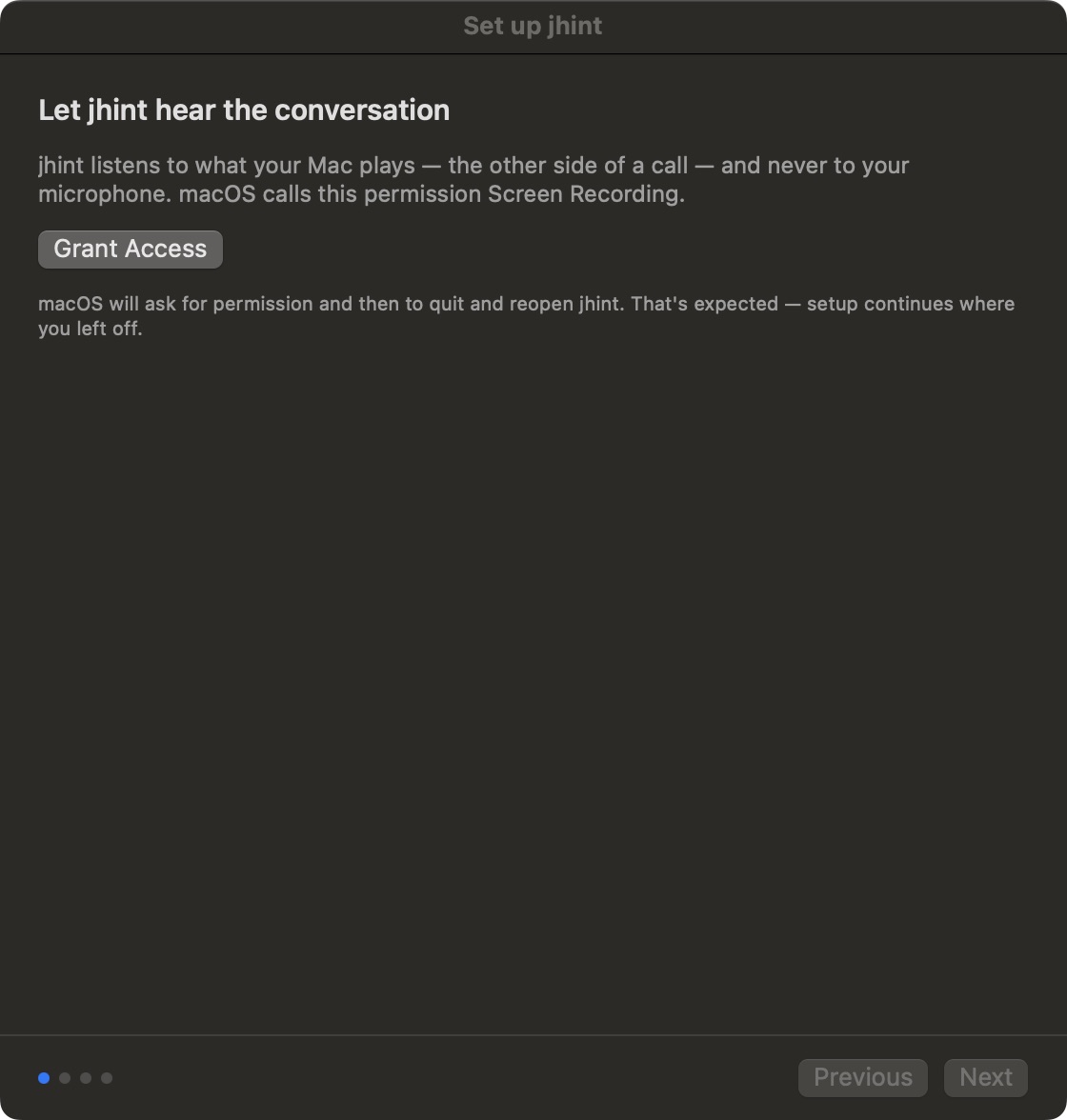
1. Install it, and let it hear the call
Move jhint to Applications and open it. Setup opens by itself and asks for one permission: Screen Recording. That is how jhint hears the other side of a call — never your microphone. The system then asks to quit and reopen; setup carries on where it stopped.
-
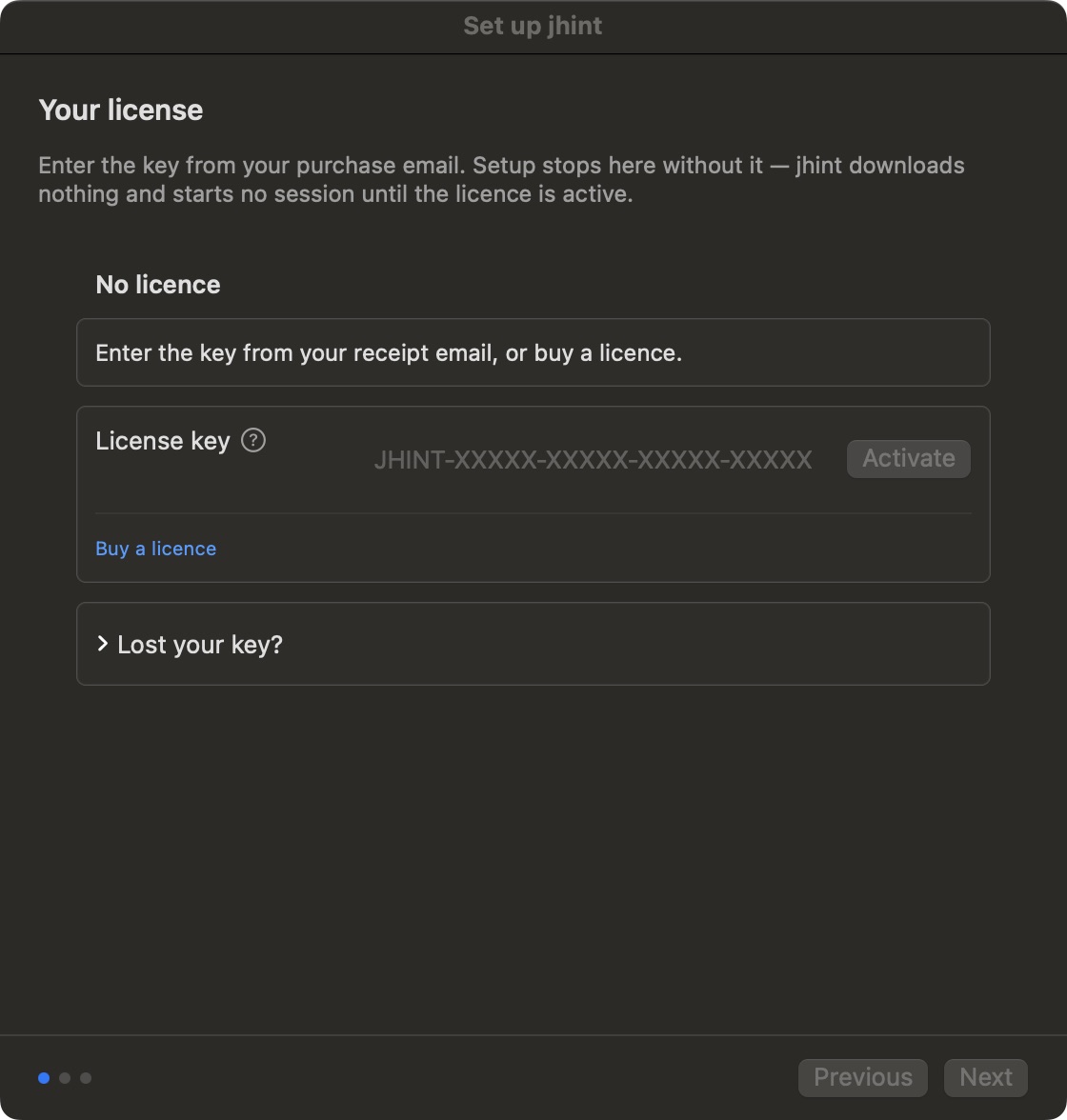
2. Enter your licence key
This comes second on purpose: your key says which plan you are on, and the plan decides what the app may do. Nothing downloads and no session starts until the key is accepted, so setup waits here. Lost it? The same screen sends it to the address you bought with.
-
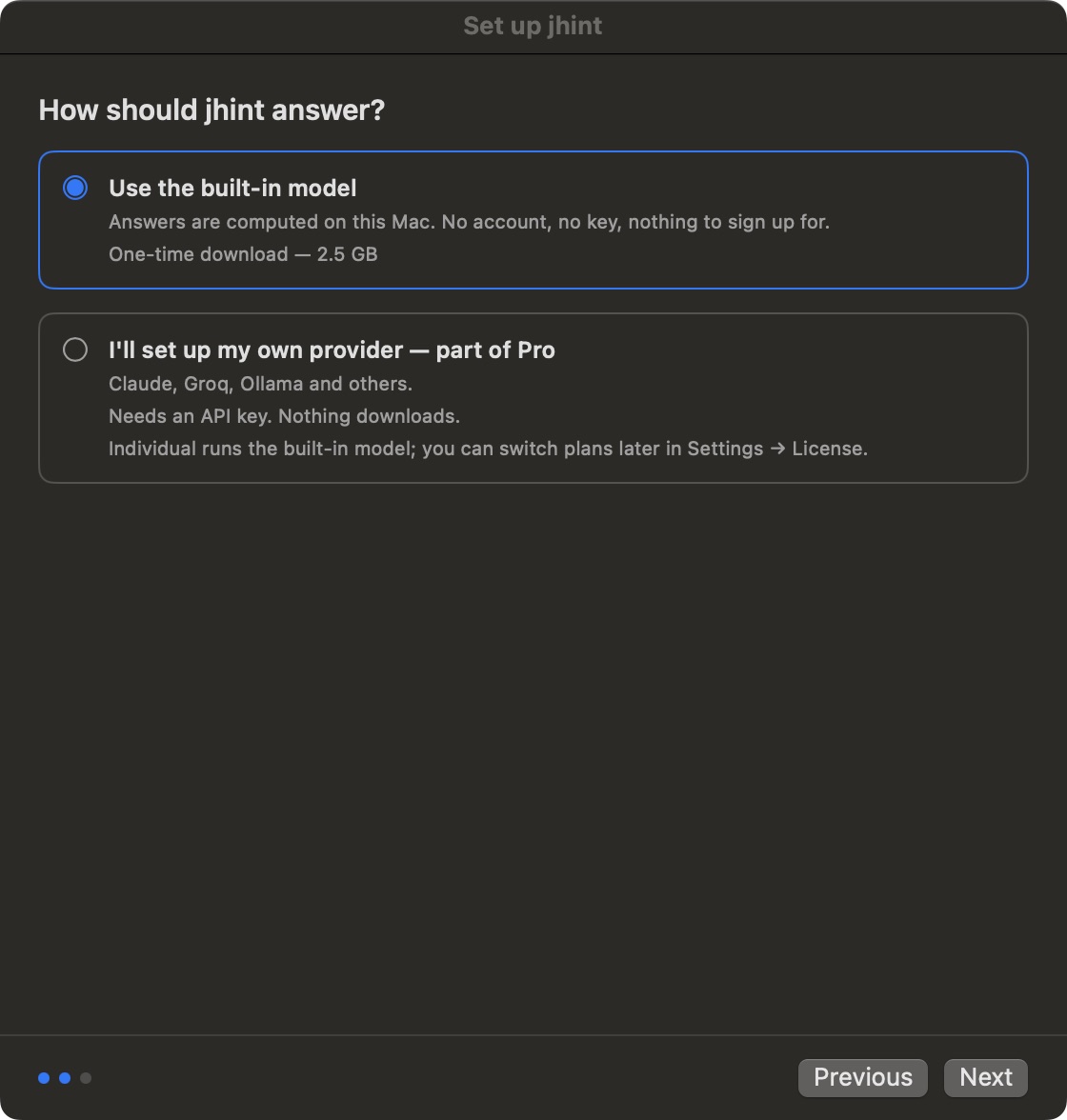
3. Choose how it answers — on Pro
The built-in model runs on your computer — no account, no key, nothing to sign up for. One download of 2.5 GB, and from then on answers are computed here. Already paying for Claude or Groq, or running Ollama? That's what Pro is for: choose the other option and paste your key; it goes to the secure storage of your operating system. On Individual this step doesn't appear at all — the built-in model starts downloading the moment your key is accepted.
-
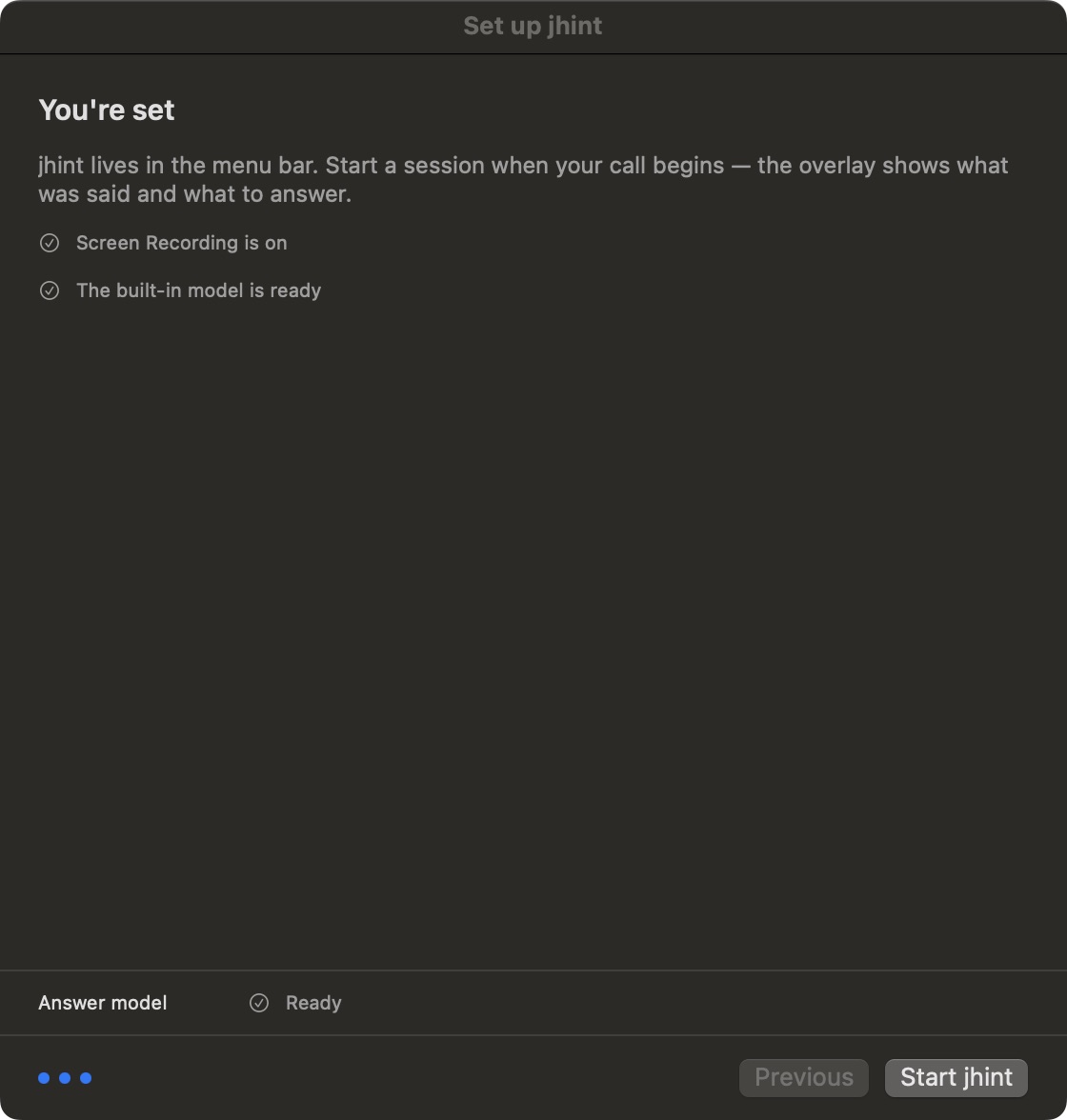
4. That's the whole setup
Screen Recording on, model ready. The strip along the bottom shows both downloads — the speech model and the answer model — and they keep going while you finish. jhint lives in the menu bar and stays out of the way until a call starts.
-
5. Start a session
Just before the call, say what you expect to hear and what you want to read — here German in, English out — and write one instruction for this conversation. This one asks for a translation of what the agent says, and a comparison of the figures with the market.

-
6. Talk, and ask when you need to
Speech appears as it is spoken. Press Answer, and only then does the question go anywhere — to the model on your computer, or to the provider you chose. What comes back is what you asked for: the translation, and the figures next to the market average.

-
1. Install it — it hears the call by itself
Run the installer; it goes into your own user folder and never asks for administrator rights. Windows shows a blue warning first, because this build is not signed yet — open the extra details and it reveals the button to run it anyway. jhint then hears what your computer plays: Windows shows no permission prompt for that, and the microphone is never used.
-
2. Enter your licence key
Setup on Windows is three steps and doesn't ask for the key: it downloads the speech model, then the answer model. You enter the key from the window over the call, or in Settings → License. Your key says which plan you are on, and the plan decides what the app may do.
-
3. Choose how it answers — on Pro
The built-in model runs on this computer and is offered when you have a discrete graphics card; without one it would write slower than the conversation moves, so jhint offers your own provider instead — Anthropic, OpenAI, Google, Groq, OpenRouter, or a model you run in Ollama or LM Studio. You choose in Settings → LLM provider.
-
4. That's the whole setup
Both models downloaded, nothing else to configure. jhint sits in the notification area and stays out of the way until a call starts.
-
5. Start a session
Just before the call, say what you expect to hear and what you want to read — here German in, English out — and write one instruction for this conversation. This one asks for a translation of what the agent says, and a comparison of the figures with the market.
-
6. Talk, and ask when you need to
Speech appears as it is spoken. Press Answer, and only then does the question go anywhere — to the model on your computer, or to the provider you chose. What comes back is what you asked for: the translation, and the figures next to the market average.
Every screen, every setting and five ways people use it — read the documentation.
Use cases
The material changes. The product doesn't.
-
Renting a flat
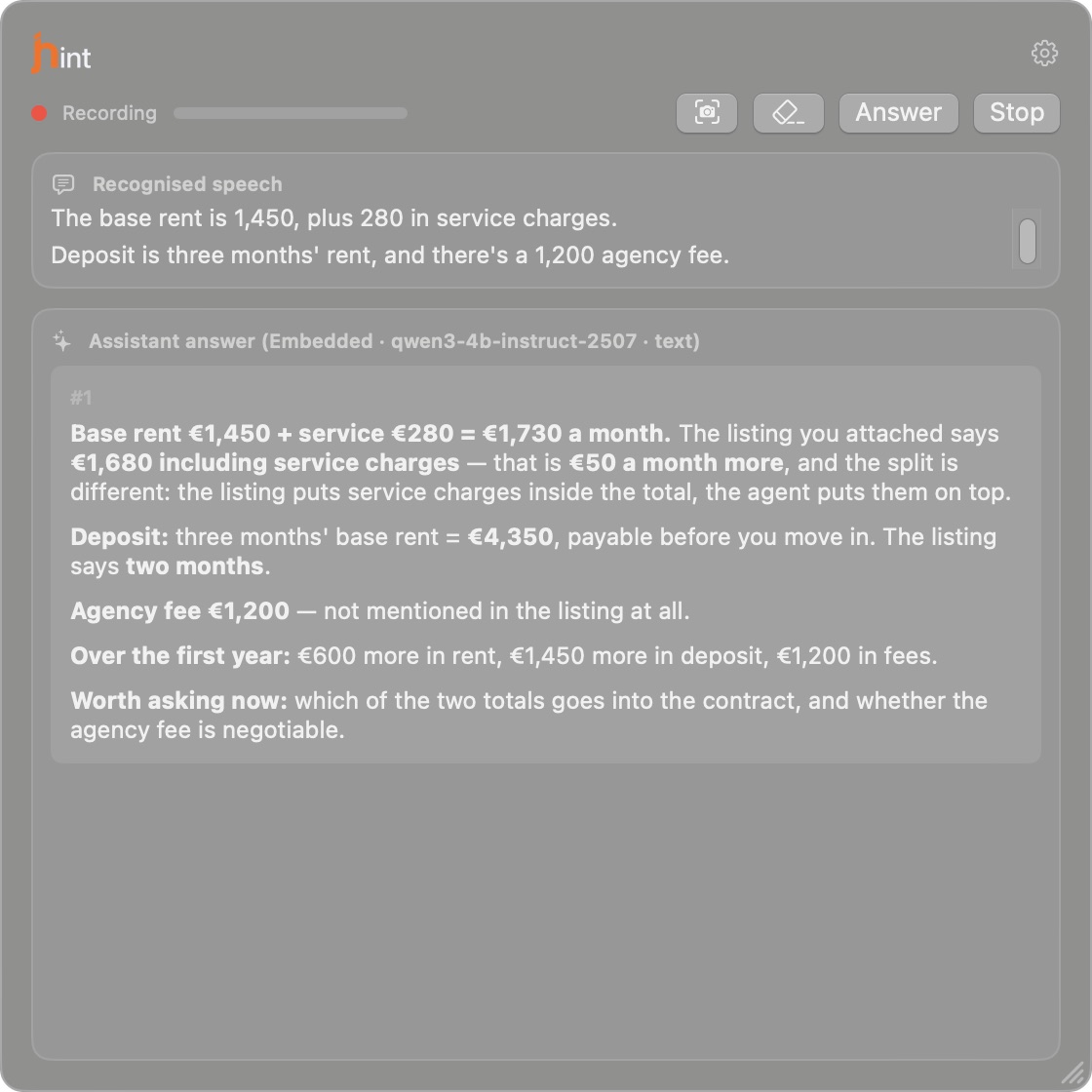
The figures on the viewing are not the figures in the listing.
You have ten minutes in the flat and a number you were told last week.
- Situation
- The agent names the base rent, the service charge and the deposit, one after another. The listing you saved said something else, and you have ten minutes in the flat to notice which number moved.
- Session setup
- The listing and the offer you were sent, attached to the session.
- Session instruction
- Compare every figure the agent names with the attached listing. Say plainly which numbers differ, by how much, and what that costs over a year.
The mismatch, while you are still standing in the flat and can ask about it.
-
At the doctor's
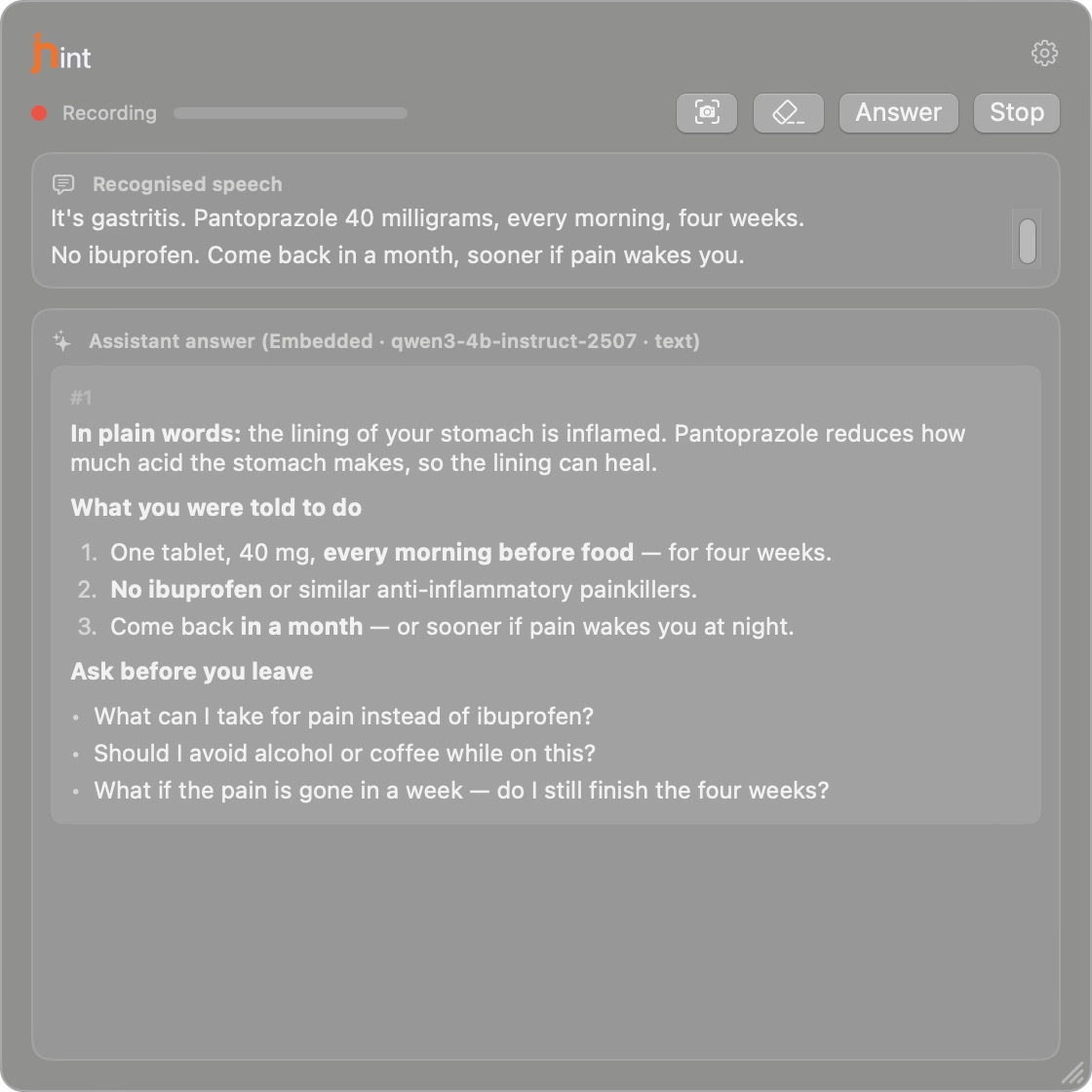
You will remember the diagnosis. Not the four things that came after it.
The words go past you once, at speed, and then the appointment is over.
- Situation
- A name for the condition, a dosage, two things to avoid, and a follow-up date — said in three minutes, in medical vocabulary, while you are still processing the first sentence.
- Session setup
- The built-in model, so nothing about your health leaves your computer. No files needed.
- Session instruction
- Explain what was just said in plain words. List what I was told to do, and suggest the questions I should ask before I leave the room.
The plain-language version, plus the question you would otherwise have thought of in the car park.
-
A big purchase
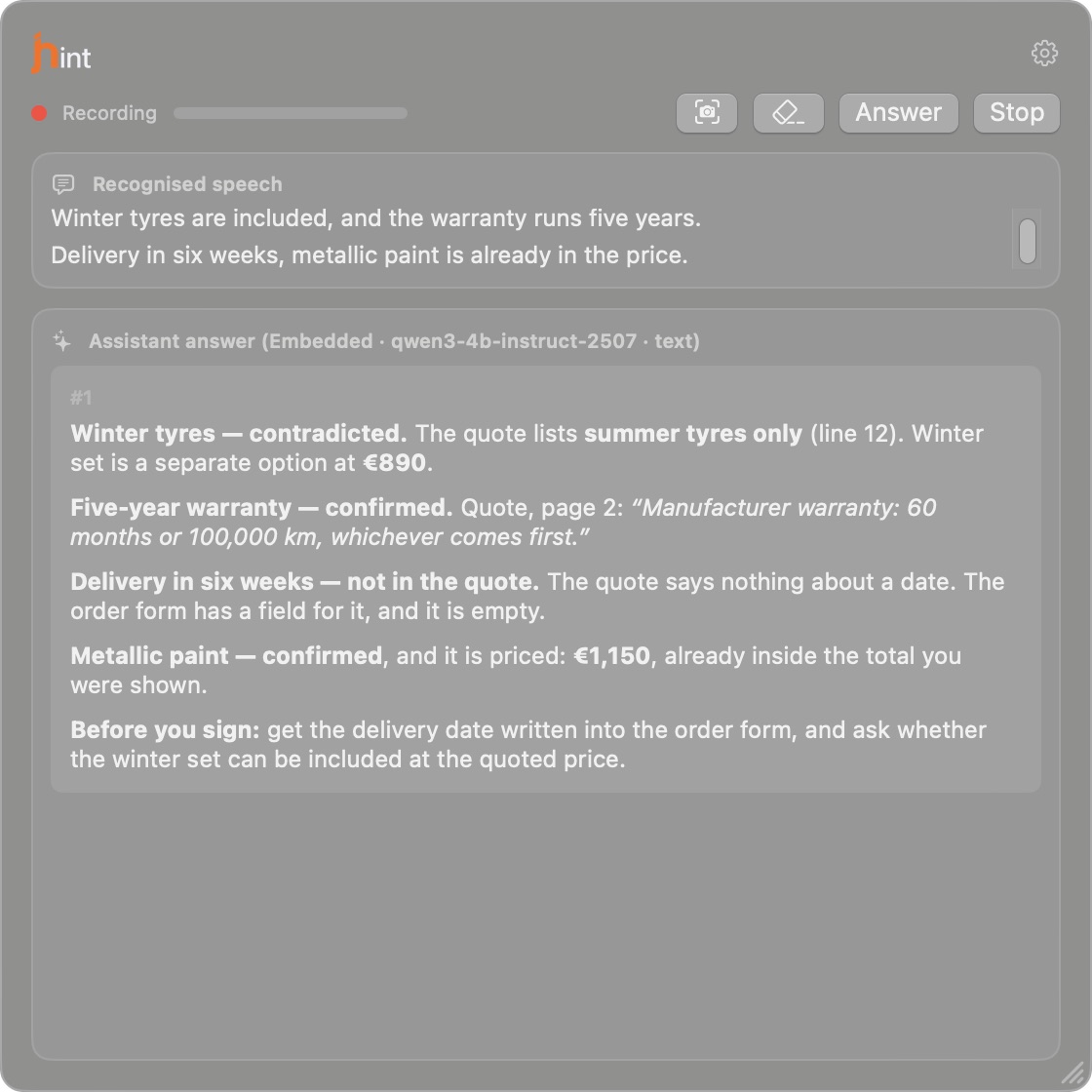
“That's included” is easy to say and expensive to assume.
The quote is on your phone. The salesperson is talking about a different configuration.
- Situation
- A car, a kitchen, windows, a boiler. The person selling it names a warranty, an option and a delivery time — and you have the written quote, but not open, not indexed, not in your head.
- Session setup
- The quote and the specification you were sent, attached to the session.
- Session instruction
- Check every claim about equipment, warranty and delivery against the attached quote. Mark each one confirmed, contradicted or not mentioned there.
Which promises are actually in writing — before you sign, not after delivery.
-
Bank, insurance, utilities
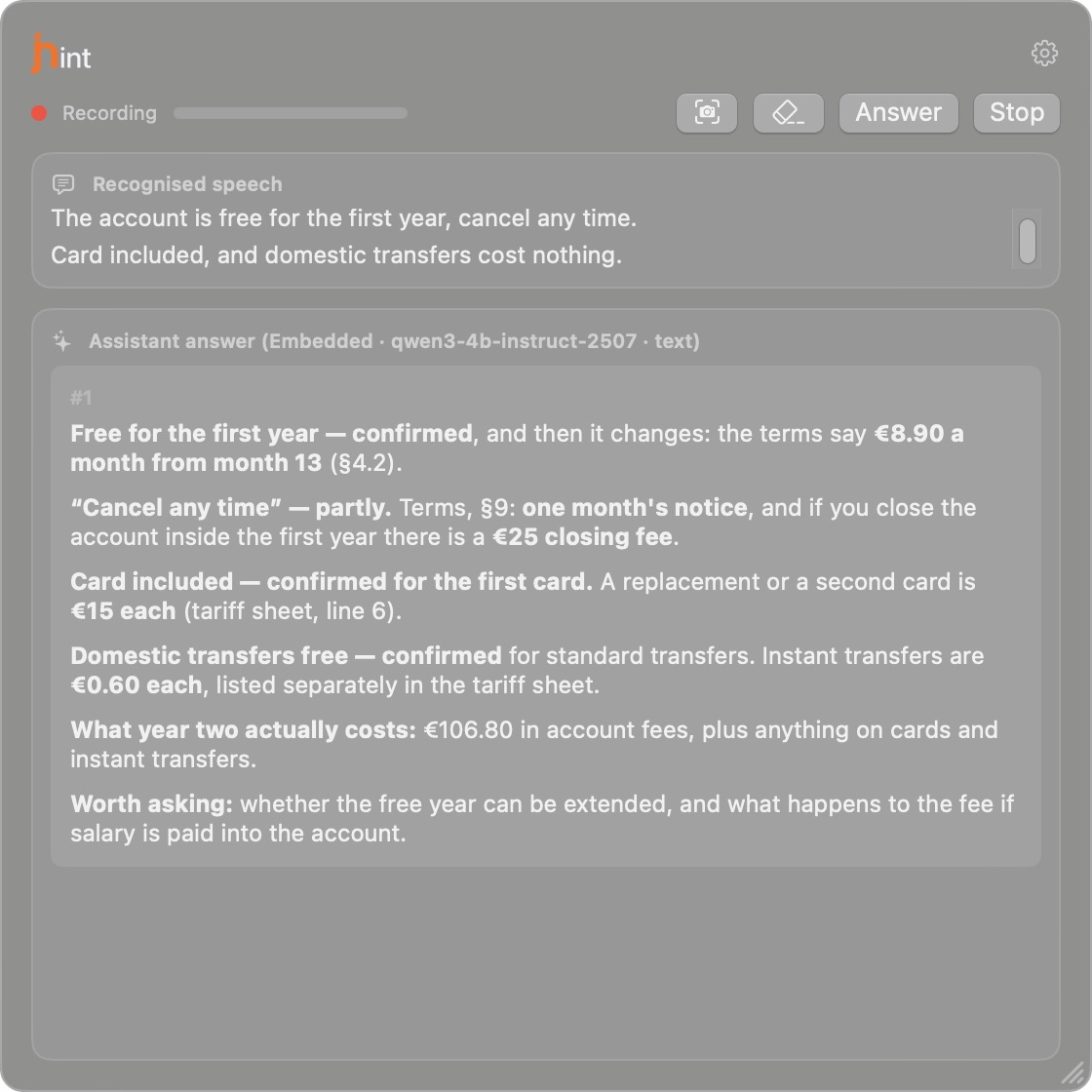
The cost is never in the sentence they say out loud.
“It's free for the first year” is a complete sentence. It is not the whole answer.
- Situation
- An account, a policy, a tariff. Someone reads you the good part over the phone, and the part that decides what you pay in month thirteen is in the terms you were emailed.
- Session setup
- The terms and the tariff sheet, attached to the session.
- Session instruction
- For everything I am being offered, name the fees, the notice period and what changes after the introductory period, using the attached terms. Flag anything that isn't in them.
The second-year price, said out loud while you can still say no.
-
Living in another language
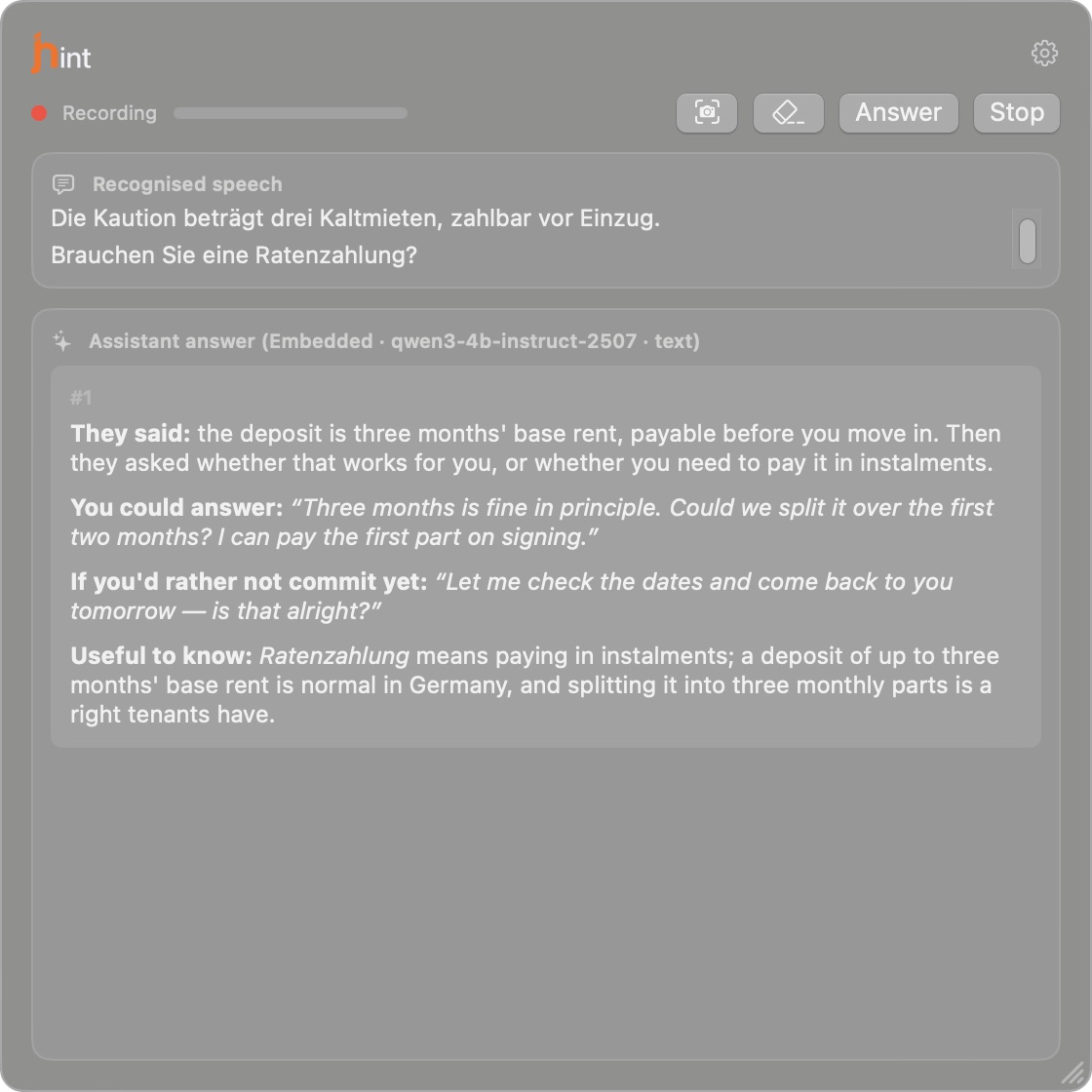
You understand more than you can say back.
You follow it. Then they stop, and wait, and the words have to arrive now.
- Situation
- A landlord, a parents' evening, a call from the town hall. You get the gist; what you need is a reply that sounds like you meant it, in the two seconds before the pause gets awkward.
- Session setup
- No files needed — one instruction for the session is enough.
- Session instruction
- Summarise the last meaningful part of what was said, then propose a short, natural reply in English. Keep the tone friendly and confident.
The meaning of what you just heard, and something you can actually say back.
Frequently asked questions
What is jhint?
A native computer assistant for live conversations. It transcribes the incoming speech on your computer and, when you ask, sends that part of the conversation to the AI model you chose.
Do I need an API key or an account with an AI company?
No. jhint comes with its own model — that's Individual: choose it on first run, wait for the download, and you are working. A key is needed only if you would rather use a provider you already pay for; that's Pro, and then it is your key and your account, not ours.
Does jhint keep sending my conversation to a model?
No. A request happens only when you press Answer or use the shortcut. Nothing is sent between those moments, and there is no stream of automatic suggestions.
Does it use my microphone, or send audio anywhere?
Neither. jhint listens to the audio your computer is already playing, and the audio itself never leaves the machine. Recognition runs locally; only the text of your request goes to the model. On macOS that is what the Screen Recording permission covers — you grant it yourself, and it is the only permission jhint asks for. On Windows there is no separate permission prompt for this kind of capture. jhint receives the system output audio — any sound your computer is playing while it is listening, not only the call.
Which AI providers can I use?
None, if you don't want to: every plan ships with a model that runs on your computer. Pro adds the rest — Anthropic, OpenAI, Google, Groq and OpenRouter with your own key, any OpenAI-compatible endpoint, or a model you run yourself through Ollama or LM Studio. Keys are stored in the secure storage of your operating system.
What's the difference between Individual and Pro?
Individual comes with a model that runs on your computer — nothing to sign up for, no keys, no AI account. Pro adds everything else: Ollama, LM Studio, your own API keys with Anthropic, OpenAI, Google, Groq or OpenRouter, and any OpenAI-compatible endpoint.
Can I switch between Individual and Pro later?
Yes, from Settings → License. Moving up applies right away, and the unused part of your current plan is credited. Moving down applies right away too, with the unused amount credited against your next invoice. Your provider settings and keys are kept either way.
How big is the built-in model, and what does it need?
The recommended model is about 2.5 GB and wants roughly 4 GB of memory free while it runs; the larger one is 5 GB and suits computers with 16 GB or more. The app shows the size before it downloads anything, and models can be deleted from Settings → Model when you no longer want them.
Can the built-in model look something up on the web?
Yes, if you turn it on — it is off until you do. The search runs from your computer, over your own connection, and the app shows you every query it makes. It reads only pages the site's own rules allow it to read, and never works around a block.
Are transcripts stored?
Not unless you turn it on. When you do, sessions are encrypted on disk, kept for the period you choose, and can be erased in one action.
Does it work with Zoom, Teams, Meet, Webex or Slack?
Yes, and with anything else that plays sound through your computer. jhint listens to the audio, not to a specific meeting platform, so no integration or bot in the call is needed.
Can it use my documents and what is on my screen?
Yes. Attach documents to the session — text, Word, RTF, HTML, OpenDocument or PDF — and capture the active window when you want the answer to work from what is on screen. Screenshots go only to models that accept images.
How does the trial work?
Seven days on the plan you choose, with everything that plan includes. A payment method is required to start, and cancelling before the end means you are never charged. One trial per email address — changing plans later doesn't start a second one.
How many computers does one licence cover, and can I cancel?
Individual covers one computer; Pro covers two at a time. Cancel from Settings → License → Manage subscription, which opens Paddle's customer portal; the licence keeps working until the end of the period you have paid for.
Can I use jhint in any conversation?
That is your call to make. Recording and assistance rules differ by country, employer and platform, and consent may be required — jhint gives you the controls, you decide where using it is appropriate.
Bring better context into your next conversation.
Start with the full jhint experience for 7 days.