Permissions
What jhint needs from the system to hear a call, and how to fix it when it says no.
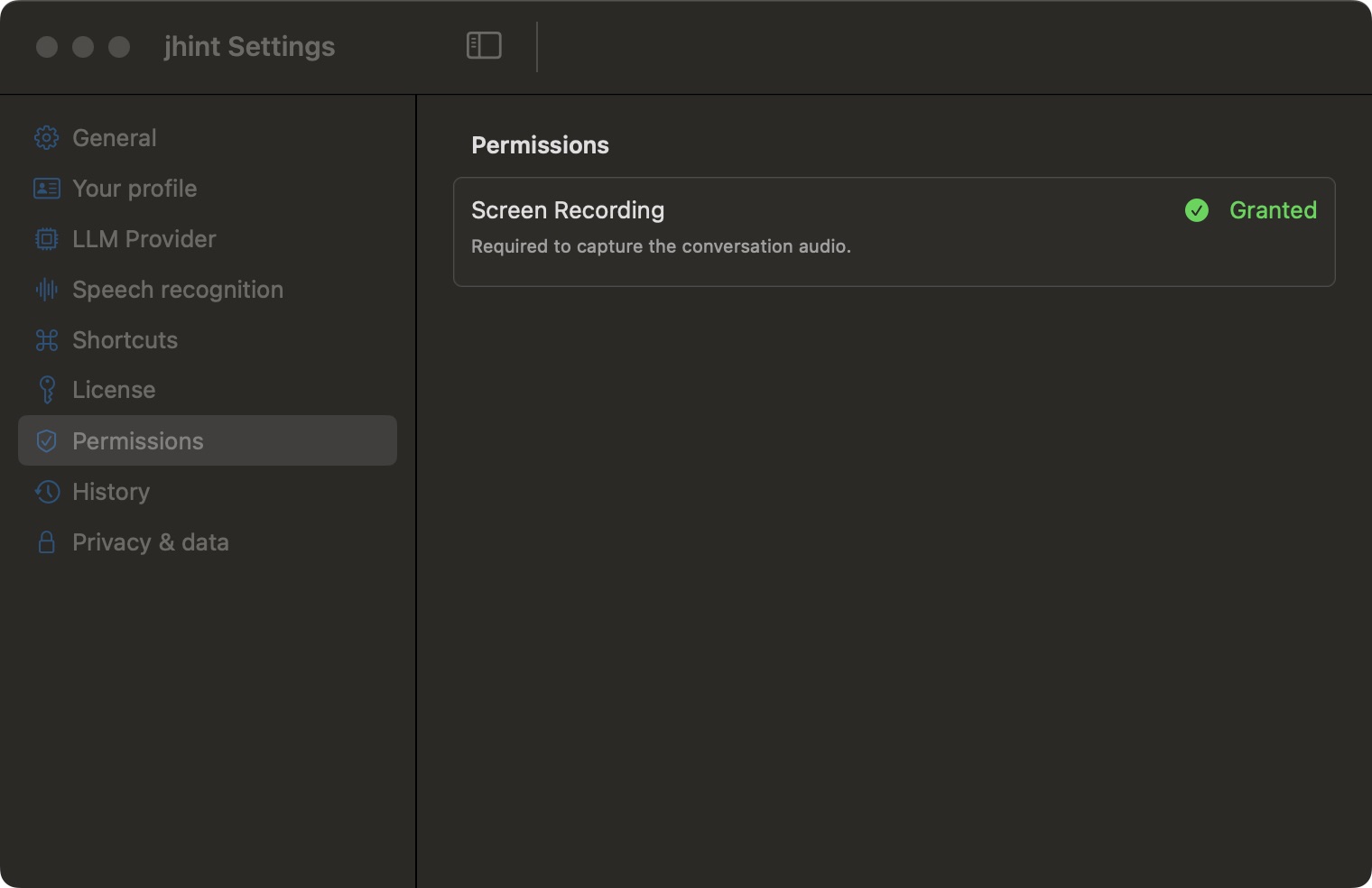
On Windows there is no Permissions tab, and this page is about a screen you don’t have. Nothing on it applies to you: jhint hears the call without asking Windows for anything, and it never touches the microphone. Settings has eight sections on Windows rather than nine, and this is the missing one.
If the level meter stays flat while people are talking, it is not a permission — Troubleshooting covers what it is.
Hearing the call
jhint listens to the audio your computer plays — the other side of a conversation. The microphone is not used, and jhint never asks for it.
Screen Recording is the only permission jhint asks for, and it covers two things macOS treats as one: hearing the call (capturing system audio lives behind this permission) and capturing a window when you press ⌃⌥S.
If it says Denied
Press the button on this tab. It asks the system and opens the right settings panel at the same time — jhint is already in the list there, and the switch needs turning on.
macOS then asks to quit and reopen jhint. That is expected: the permission applies to a process started after it was granted.
If the list doesn’t show jhint at all, the app has never asked. That happens with builds that were never launched normally — open jhint from Applications and the request appears.