Web search
Letting the built-in model look something up — how it works, and what it will not do.
The built-in model knows what it was trained on. When an answer depends on something current — a rule that changed, a figure from this year — it can look it up, if you allow it.
Turning it on
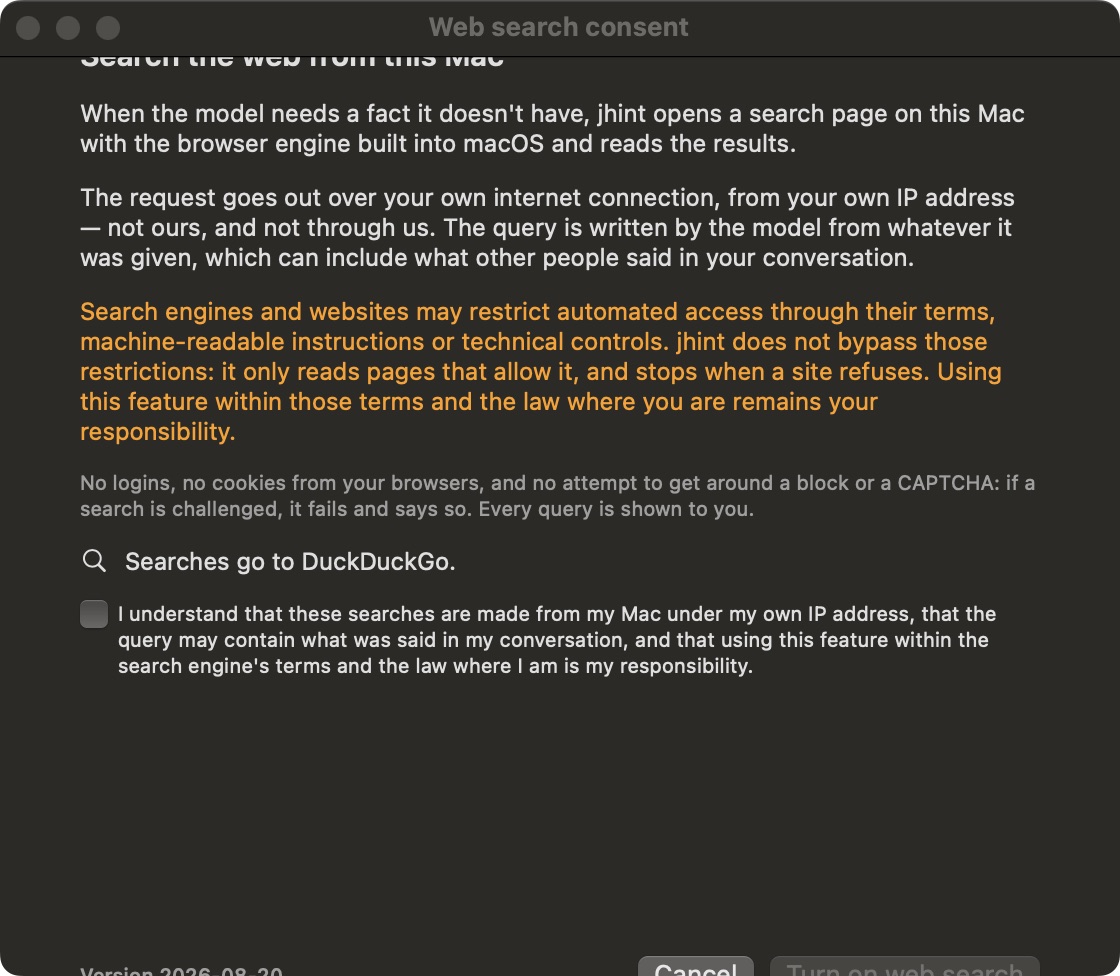
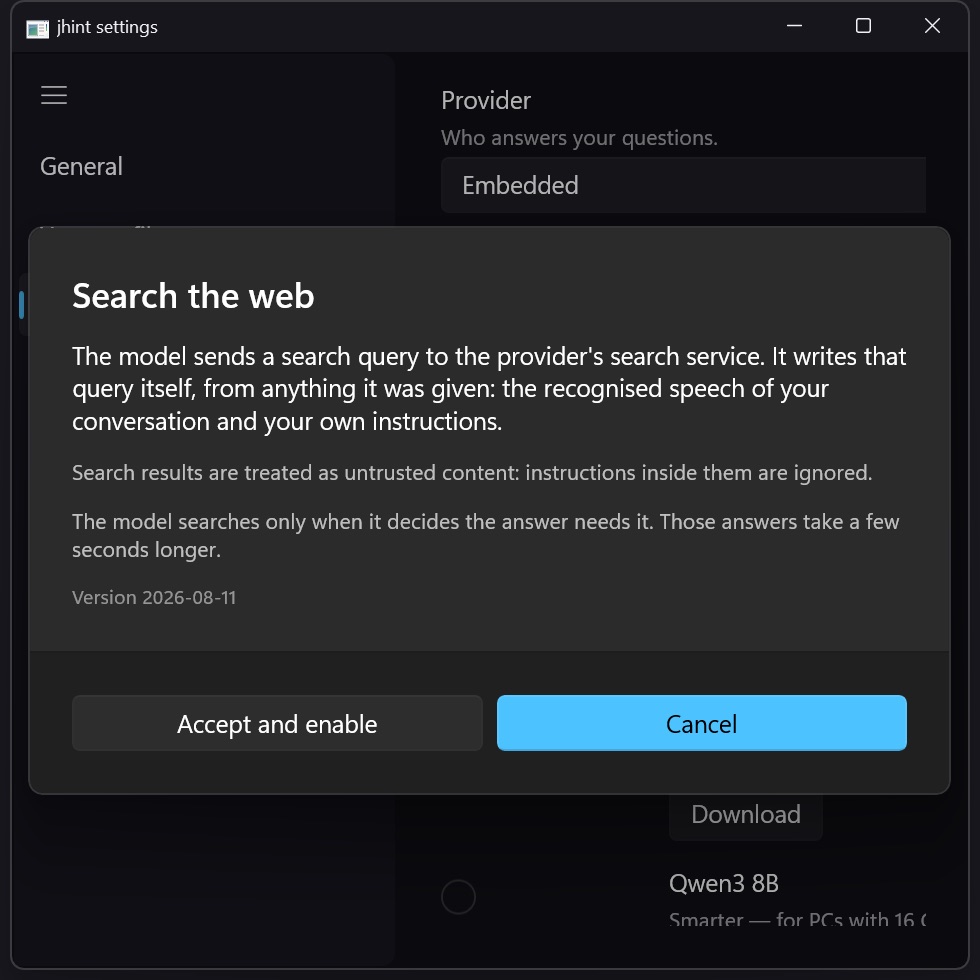
The switch is on Settings → LLM Provider, under the model list, and it is off until you turn it on. The first time, jhint explains what will happen and asks you to accept it.
What happens during a call
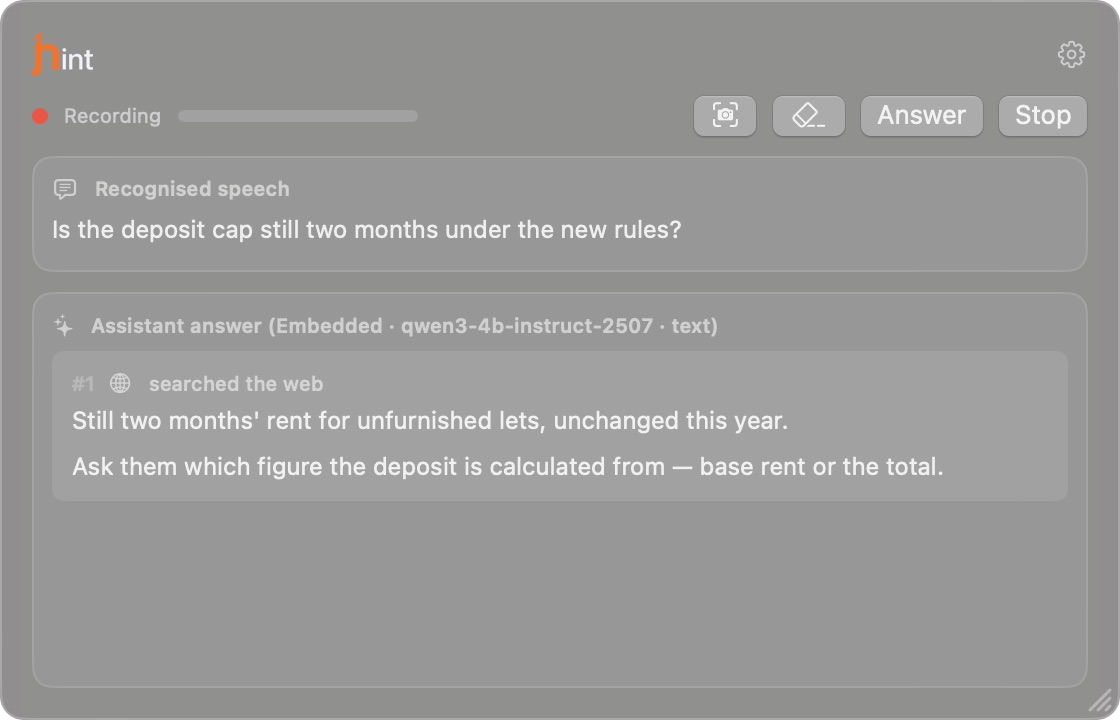
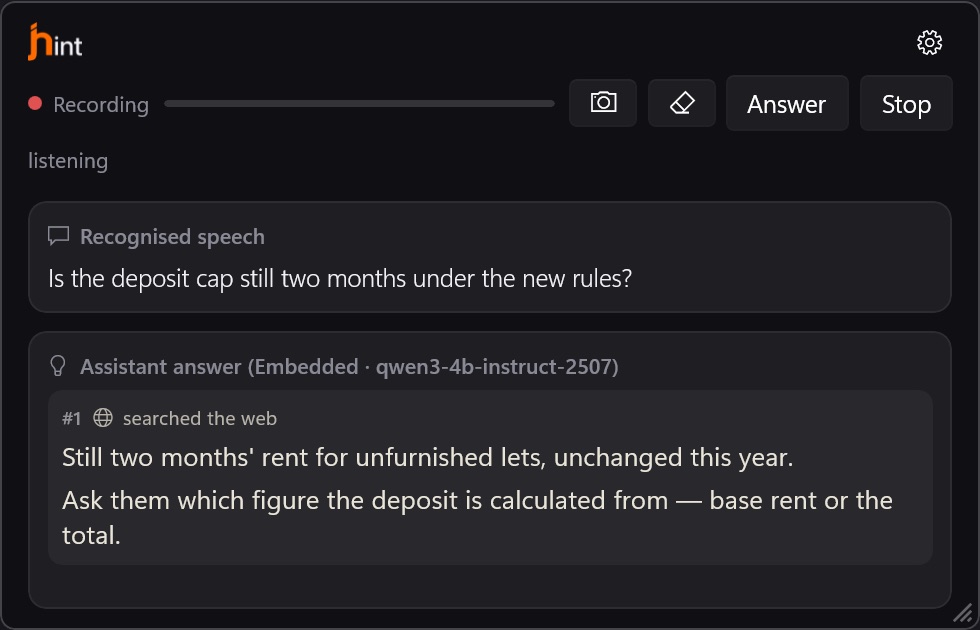
The model decides whether a question needs a search — you don’t type queries. When it searches, the answer is marked with a globe and searched the web, and you can see the queries it made.
Searches run from your computer, over your own connection, under your own IP address. Nothing goes through us: there is no jhint server in the path, and no account with a search company.
The limits it keeps
- One search engine — DuckDuckGo — and only what its own rules allow. jhint does not work around a block, a paywall or a login.
- It reads the page as a reader would, and takes the text it needs for the answer.
- The search terms are what the question is about, and the pages it opened are shown to you.
Your use of the search engine is between you and them, under their terms. That is why the switch is yours to turn on rather than something we do quietly on your behalf.
With your own provider (Pro)
Providers have their own web search, which some models use on their side. That is their feature, running on their servers — see LLM Provider.